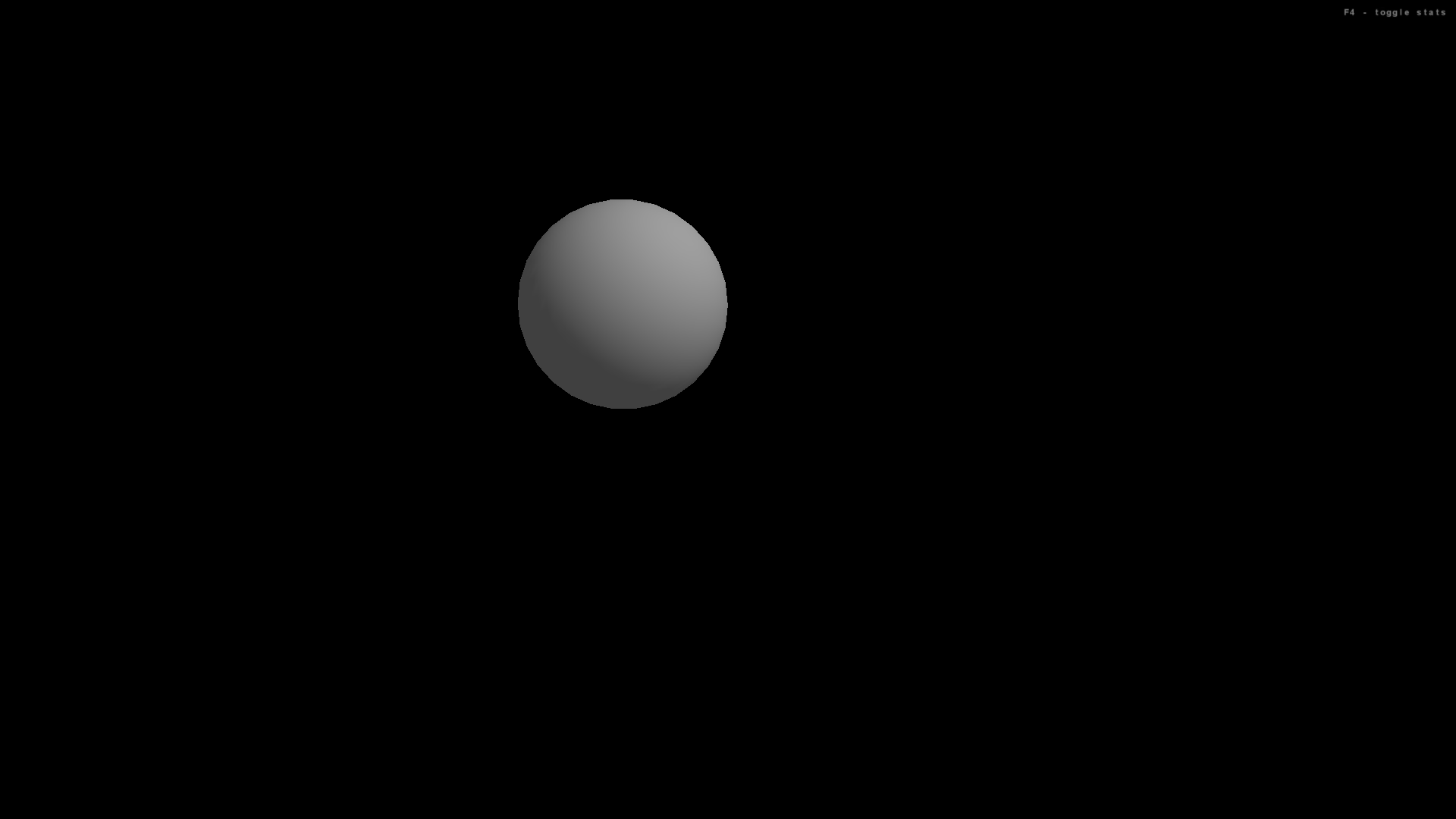
The goal:
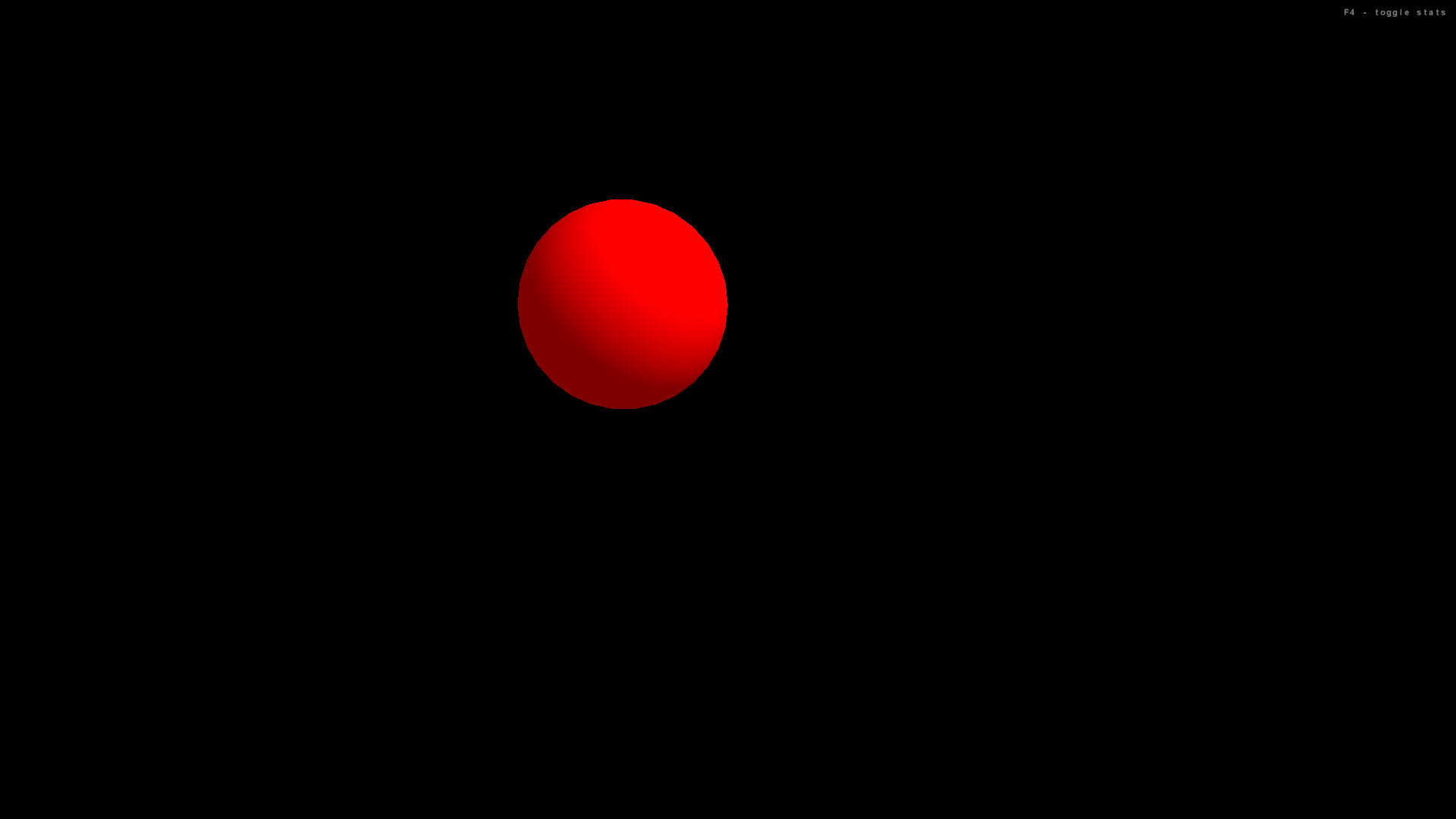
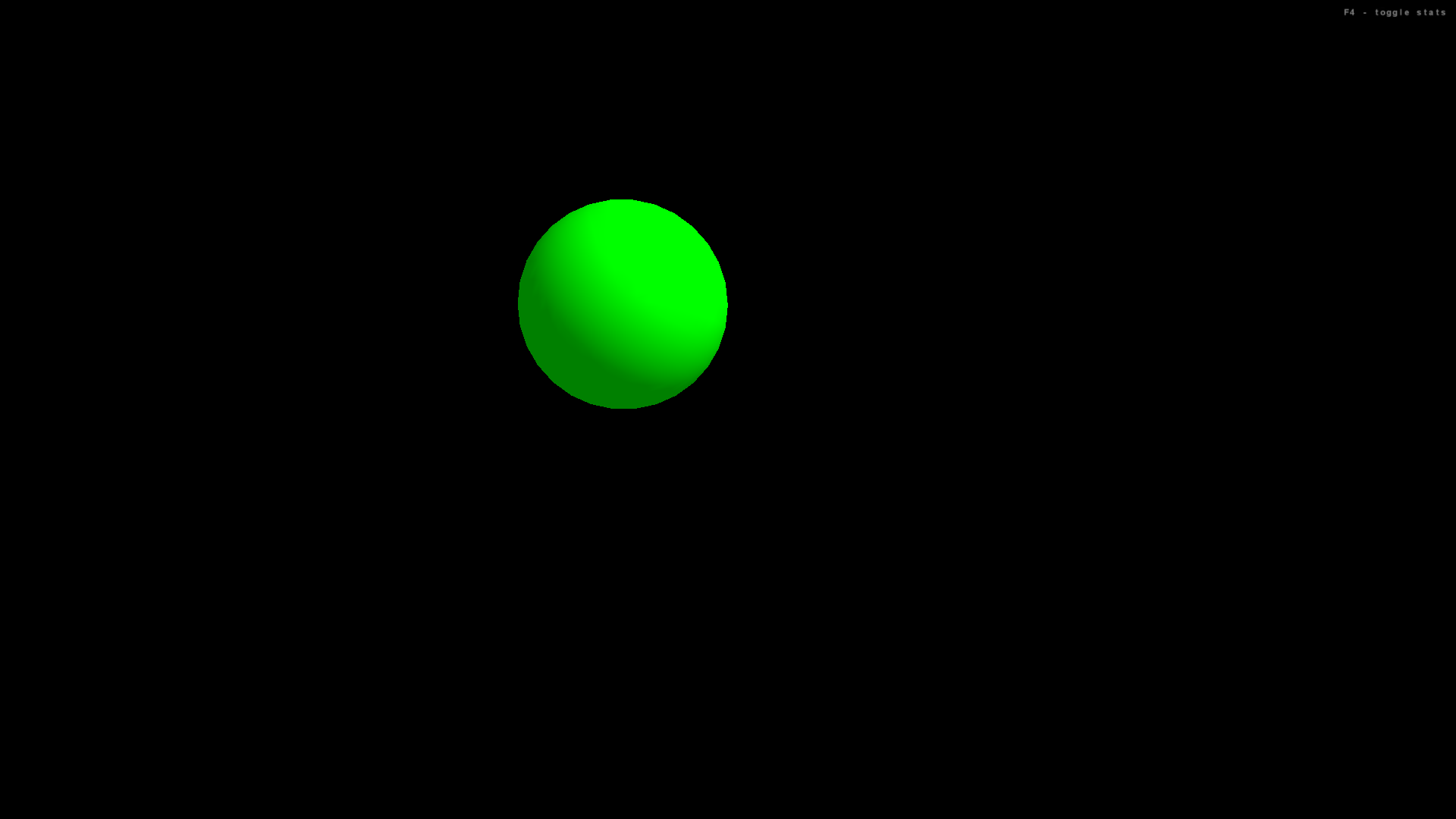
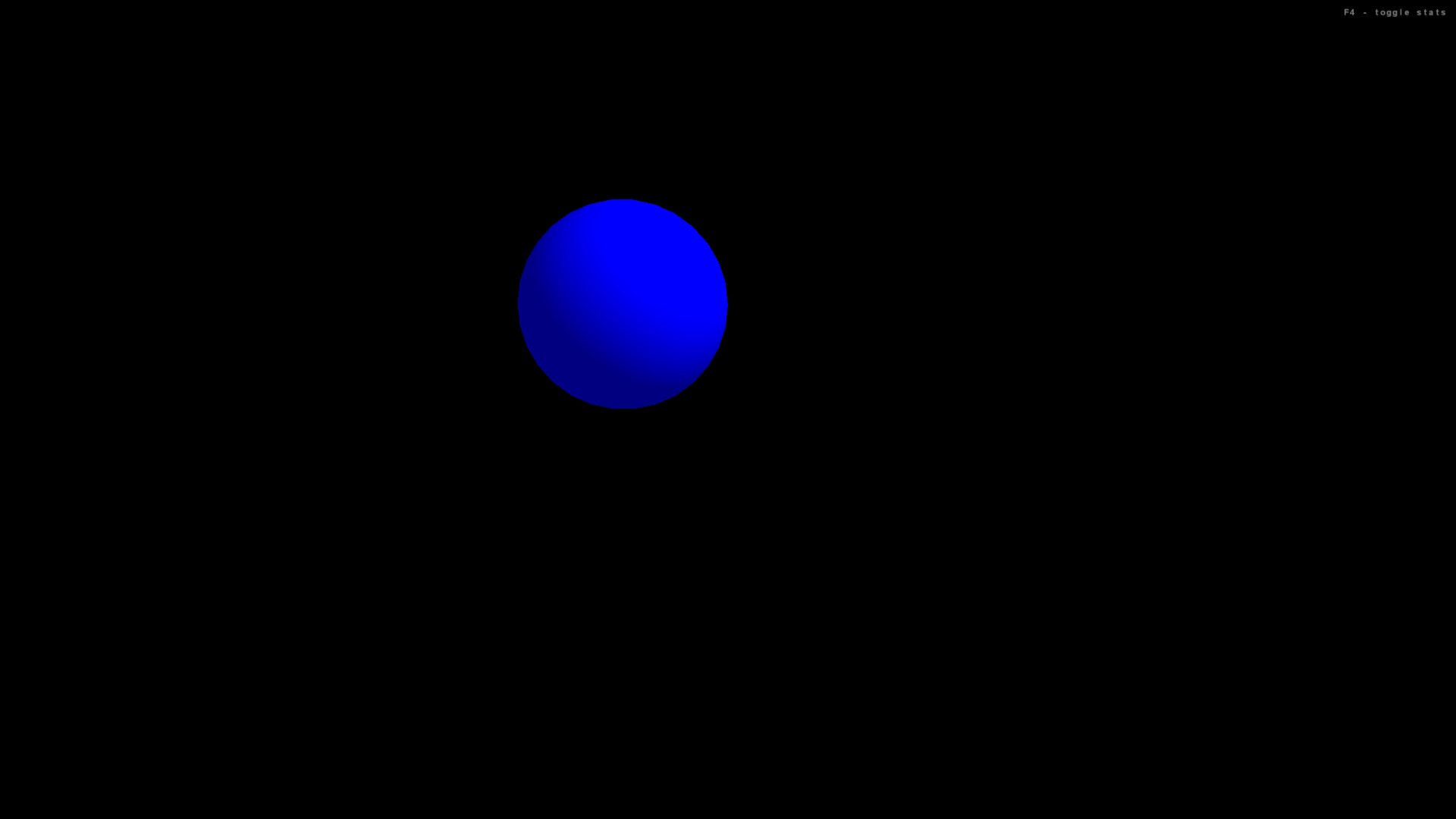
Click for full size. Hover over for more details.
Click here to download the code. (If the page opens in the broswer, you can right click on link and click "Save Link As", or right click on the page and click "Save As")
        // most applications will want to extend the SimpleGame class
        import com.jme.app.SimpleGame;

        // a vector containing three float numbers;
        //   used to store positions and translations
        import com.jme.math.Vector3f;

        // geometric shapes used in program
        import com.jme.scene.shape.Box;
        import com.jme.scene.shape.Sphere;

        // use predefined colors and create custom colors
        import com.jme.renderer.ColorRGBA;

        // work with basic materials
        import com.jme.scene.state.MaterialState;

        // process user input
        import com.jme.input.InputHandler;
        import com.jme.input.KeyInput;
        import com.jme.input.KeyBindingManager;
        import com.jme.input.FirstPersonHandler;

        /**
         *   User input is handled in two steps:
         *   (1) Bind a given keyboard/mouse action to a string
         *   (2) In the update method, check if that string has been activated
         */
        public class InputDemo extends SimpleGame
        {
           // a geometric shape that will be rendered
           Sphere mySphere;

           public static void main(String[] args)
           {
               // create an instance of this program
               InputDemo app = new InputDemo();

               // before the main program starts, display the graphics configuration window
               //   where the user can choose among screen resolution, color depth, and full screen options
               app.setConfigShowMode(ConfigShowMode.AlwaysShow);

               // The start() method runs simpleInitGame(),
               //   then starts the game loop: simpleUpdate(), then simpleRender()
               // To terminate game loop, call finish()
               app.start();
           }

           protected void simpleInitGame()
           {
               // make the standard cursor visible.
               org.lwjgl.input.Mouse.setGrabbed(false);
               // SimpleGame class defaults mouse behavior to rotate view; here we disable this.
               ((FirstPersonHandler)input).getMouseLookHandler().setEnabled(false);

               // create a material to apply to geometric objects, use objects' default color,
               //  apply to front and back, and assign rendering to root node
               MaterialState customMaterial = display.getRenderer().createMaterialState();
               customMaterial.setColorMaterial(MaterialState.ColorMaterial.AmbientAndDiffuse);
               customMaterial.setMaterialFace(MaterialState.MaterialFace.FrontAndBack);
               rootNode.setRenderState(customMaterial);

               // Parameters for the Sphere constructor:
               //   Sphere( String name, Vector3f center, int zSamples, int radialSamples, float radius )
               mySphere = new Sphere("s", new Vector3f(-2,2,6), 30, 30, 2 );
               mySphere.setDefaultColor( ColorRGBA.gray );
               rootNode.attachChild( mySphere );

               // assign (bind) strings to keys
               KeyBindingManager.getKeyBindingManager().set( "sphereRed", KeyInput.KEY_1 );
               KeyBindingManager.getKeyBindingManager().set( "sphereGreen", KeyInput.KEY_2 );
               KeyBindingManager.getKeyBindingManager().set( "sphereBlue", KeyInput.KEY_3 );
           }

           protected void simpleUpdate()
           {
               // process input entered since last update.
               //  boolean parameter:
               //  true - activate continuously when key is down;
               //  false - activate only once per key press
               if (KeyBindingManager.getKeyBindingManager().isValidCommand("sphereRed", false))
               {
                   mySphere.setDefaultColor( ColorRGBA.red );
                   // call updateRenderState() whenever appearance of an object changes
                   mySphere.updateRenderState();
               }
               if (KeyBindingManager.getKeyBindingManager().isValidCommand("sphereGreen", false))
               {
                   mySphere.setDefaultColor( ColorRGBA.green );
                   mySphere.updateRenderState();
               }
               if (KeyBindingManager.getKeyBindingManager().isValidCommand("sphereBlue", false))
               {
                   mySphere.setDefaultColor( ColorRGBA.blue );
                   mySphere.updateRenderState();
               }
           }

           protected void simpleRender()
           {
               // nothing to add
           }
        }